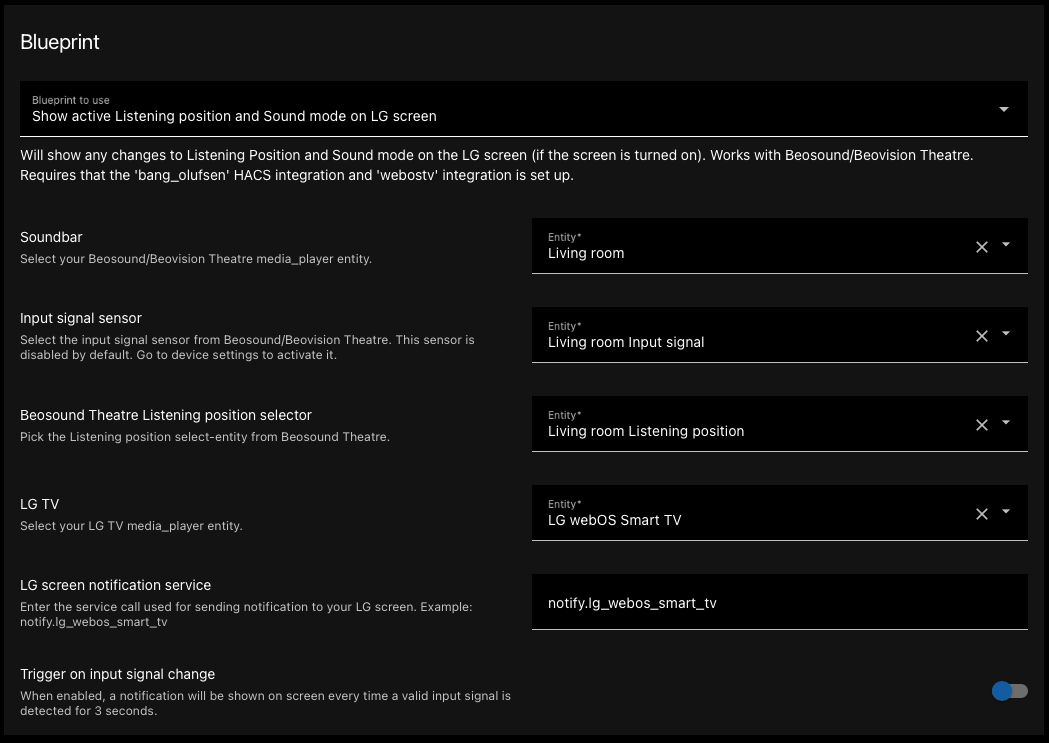
A small blueprint to see the current listening position, sound mode and input signal on Beosound/Beovision Theatre when the screen is turned on.
Before you start
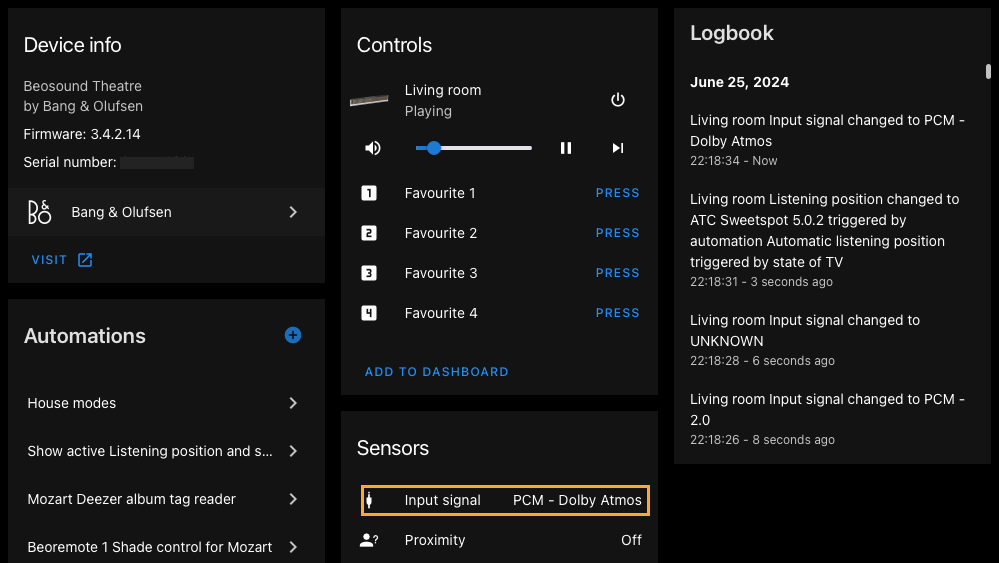
- The Input signal sensor must be enabled for Beosound Theatre on its device page (see picture 2).
- Your LG screen must be connected to Home Assistant with the
webostvintegration. This creates anotifyservice for the screen, which is used to send notifications to the TV (see picture 3).
Setup
Install the blueprint using the import button and fill in all fields:
- Select your Beosound Theatre
media_playerentity. - Select the Input signal sensor for your Beosound Theatre (it is disabled by default, see picture 2).
- Select the
selectentity for setting the listening mode on Theatre. - Select your LG TV.
- Enter your notify service name. If you only have one LG screen it defaults to
notify.lg_webos_smart_tv(otherwise, see picture 3). - Enable Trigger on input signal if you want a notification every time the input signal changes to a valid signal (“Unknown” is excluded). If you use e.g. an Apple TV, you may want to disable navigation clicks on the set-top box to avoid false triggers. If you leave this disabled, you only get a notification when you change listening position or sound mode.
Finding the right entities
Picture 2: Go to Settings → Devices & services → Bang & Olufsen → Beosound Theatre and find the sensor section. If you don’t see the Input signal sensor, select “x entities not shown”, press the Input signal sensor and enable it. Wait about 30 seconds for it to start.
Picture 3: To see which notify service your LG screen uses, go to Developer tools → Services (Actions) and enter “notify”. You should see one with LG in its name. Enter that one in the “LG screen notification service” field in the blueprint.
Demo
Screenshots